
Twilio SMS (BYOT) Setup Guide
Connect your Twilio account to send back-in-stock notifications via SMS, configure webhooks for delivery tracking and customer replies, and verify end-to-end delivery
Show all sections (42)
- Step 1 — Get Twilio API credentials and enter them in DemandLoop
- Get your credentials from Twilio
- Enter credentials in DemandLoop
- Step 2 — Create a Messaging Service in Twilio
- Option A (recommended): Messaging Service
- Copy the Messaging Service SID
- Option B: Single phone number
- Step 3 — Connect sending method and enable
- Choose a sending method
- Test connection
- Confirm compliance and enable
- Step 4 — Enable SMS notifications and set your template
- Enable SMS notifications
- Customize the message template
- Step 5 — Ensure the storefront collects phone + consent
- Step 6 — Send a test SMS (end-to-end)
- Verify delivery
- Troubleshooting
- 1) SMS (Twilio BYOT) is locked / can't enable the integration
- 2) "Invalid Account SID/Auth Token format"
- 3) Connection test passes, but SMS fails to send
- 4) From Number is rejected
- 5) Messaging Service SID is rejected
- 6) US messages show "Undelivered" or are filtered by carriers
- 7) Messages are unexpectedly short or split into multiple segments
- 8) SMS doesn't arrive at night
- 9) Customer says they didn't get an SMS
- 10) Customer replied STOP and now SMS fails
- 11) Delivery status not updating in Notification History
- 12) Customer replied START but SMS is still not sending
- Billing & responsibility
- FAQ
- Do you recommend Messaging Services or a single From Number?
- Can I send SMS without customer consent?
- Is MMS supported?
- Where can I see SMS delivery failures?
- Are there quiet hours for SMS?
- What happens when a customer replies STOP?
- Do I need to configure webhooks in Twilio?
This guide walks you through connecting your own Twilio account to DemandLoop so you can send back-in-stock notifications via SMS.
What you'll accomplish
- Connect DemandLoop to Twilio using your Account SID + Auth Token
- Create a Messaging Service in Twilio with webhook integration
- Configure incoming-message and delivery-status webhooks so DemandLoop can track SMS delivery and handle customer replies
- Enable SMS (Twilio BYOT) and customize the message template
- Verify delivery in DemandLoop and in Twilio
Requirements
- Plan: SMS (Twilio BYOT) is available on the Essentials plan (or higher)
- Twilio account: Admin access to your Twilio Console
- Sender identity (one of the following):
- Messaging Service SID (recommended), or
- A Twilio SMS-capable phone number
- Compliance: For US sending, Twilio may require A2P 10DLC registration for your brand/campaign
- Customer consent: Your storefront subscription flow must collect explicit SMS consent before sending
Quick checklist
Before you start, make sure you have the following ready:
- Twilio Account SID + Auth Token
- DemandLoop on the Essentials plan (or higher)
- At least one SMS-capable phone number in your Twilio account
- Storefront widget configured to collect phone number + SMS consent
- Time to run an end-to-end test after setup
Step 1 — Get Twilio API credentials and enter them in DemandLoop
Get your credentials from Twilio
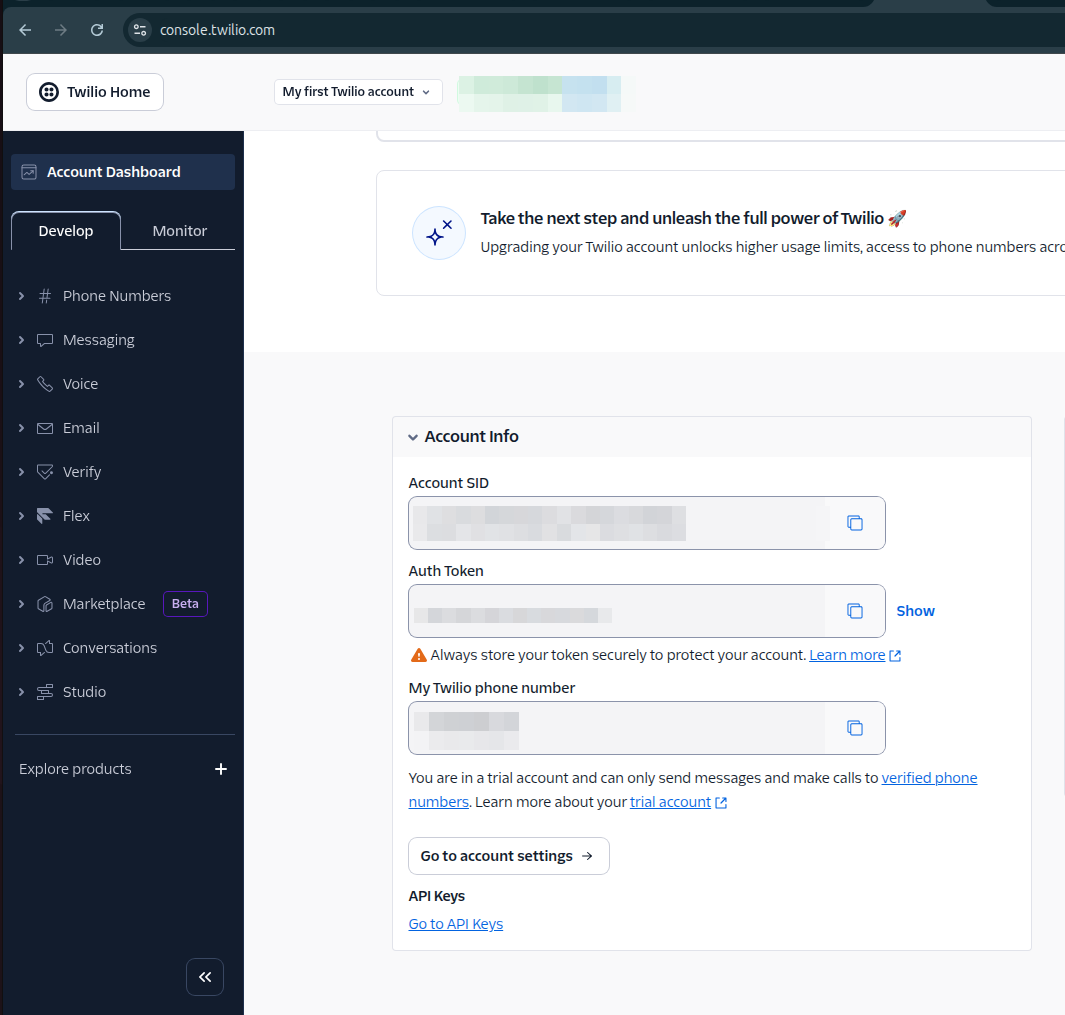
Open your Twilio Console and go to the Account Dashboard.
Under Account Info, copy:
- Account SID (format:
AC+ 32 hex characters) - Auth Token (32 hex characters — click Show to reveal it)
Enter credentials in DemandLoop
In DemandLoop, go to Modules → SMS (Twilio) → Settings.
Can't find it? Open the left sidebar and look under Modules.
Paste your Account SID and Auth Token into the corresponding fields and save.
After saving, DemandLoop displays two webhook URLs at the bottom of the settings page:
- Incoming Messages Webhook URL — receives re-opt-in keywords from customers (START, YES, UNSTOP) so DemandLoop can resume sending SMS
- Delivery Status Webhook URL — receives delivery confirmations and failures from Twilio, including carrier-level blocks when a customer replies STOP (error 21610)
Keep this page open — you will need both URLs in the next step.
What success looks like
- Both fields accepted without validation errors
- Two webhook URLs are displayed on the page
Step 2 — Create a Messaging Service in Twilio
Option A (recommended): Messaging Service
In Twilio Console, navigate to Develop → Messaging → Services and click Create Messaging Service.
Twilio guides you through a four-step wizard:
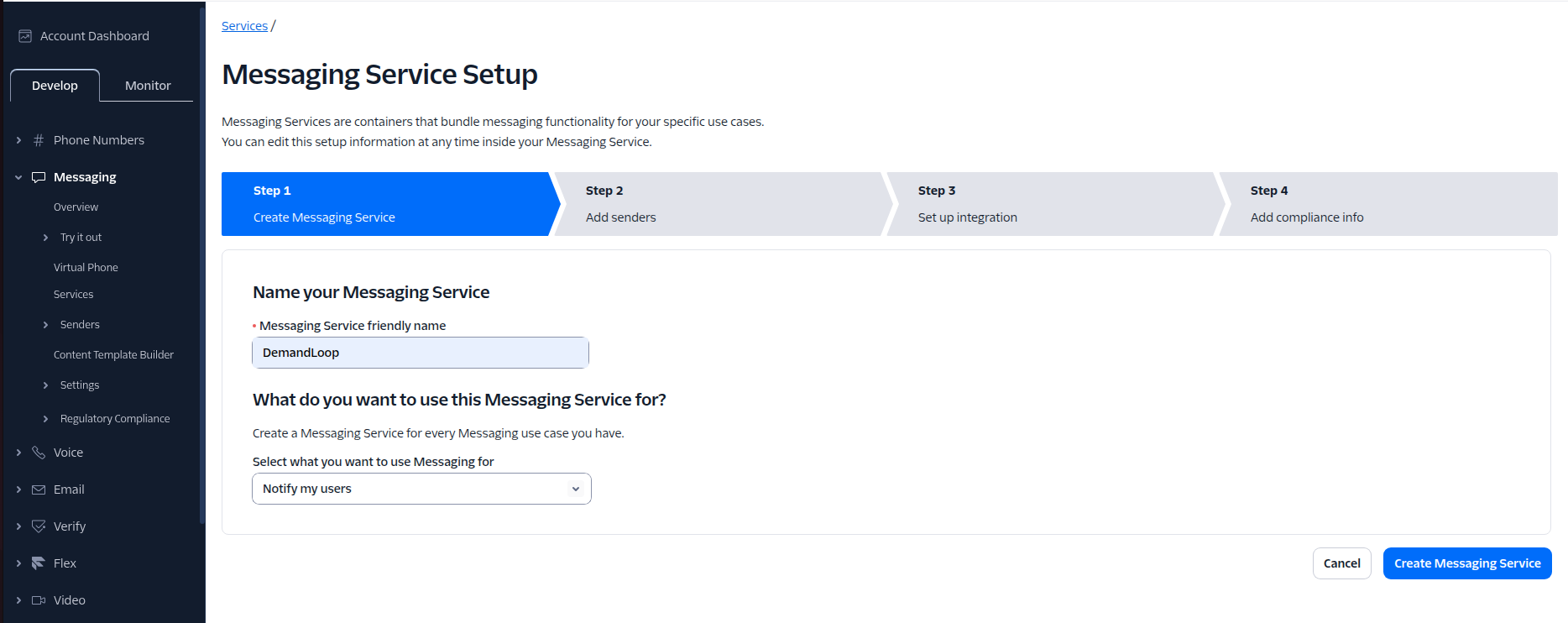
Twilio Step 1 — Create Messaging Service
- In the Messaging Service friendly name field, enter a name (for example,
DemandLoop). - Under What do you want to use this Messaging Service for?, select Notify my users.
- Click Create Messaging Service.
Twilio Step 2 — Add senders
- Click Add Senders.
- Select Phone Number as the sender type and click Continue.
- Select at least one SMS-capable phone number from the list and click Add Phone Numbers.
What success looks like
- At least one phone number appears in the sender pool
Twilio Step 3 — Set up integration
This step connects Twilio to DemandLoop so that customer replies and delivery updates are processed automatically.
Incoming Messages
- Select Send a webhook (invoke an HTTP webhook for all incoming messages).
- In Twilio's Request URL field, paste the Incoming Messages Webhook URL from DemandLoop (Modules → SMS → Settings).
- Leave the method as HTTP Post.
- Leave Fallback URL empty — Twilio retries the primary URL automatically if it fails to respond.
Delivery Status Callback
In Twilio's Callback URL field, paste the Delivery Status Webhook URL from DemandLoop (Modules → SMS → Settings).
Validity Period
Leave the default value (36000 seconds / 10 hours). Twilio will stop attempting to deliver a queued message after this period.
Why these webhooks matter:
- Incoming Messages Webhook allows DemandLoop to process re-opt-in keywords (START, YES, UNSTOP). When a customer texts START, DemandLoop resumes SMS delivery for that phone number.
- Delivery Status Webhook allows DemandLoop to track whether each SMS was delivered, failed, or undelivered. If a customer replies STOP, Twilio blocks further messages at the carrier level and returns error 21610 — DemandLoop records this and prevents further sends until the customer re-opts in. Without this webhook, Notification History will not show delivery status for SMS.
Twilio Step 4 — Add compliance info
For many stores, no changes are required here. If Twilio prompts you for compliance registration (for example, A2P 10DLC for US sending), complete it before proceeding.
Click Complete Messaging Service Setup.
Copy the Messaging Service SID
After the wizard finishes, go to Develop → Messaging → Services. Copy the SID of the service you just created (format: MG...).
What success looks like
- Messaging Service exists with at least one sender number
- You can see a Messaging Service SID starting with
MG
Option B: Single phone number
If you prefer not to use a Messaging Service:
- In Twilio Console, purchase (or select) an SMS-capable phone number.
- Copy the phone number in E.164 format (example:
+14155551234). - On the phone number's configuration page in Twilio Console, set the Incoming Messages Webhook URL and Delivery Status Webhook URL using the same values from DemandLoop (Modules → SMS → Settings).
What success looks like
- The number is SMS-capable in Twilio
- You have the full E.164 number starting with
+ - Incoming message and status callback webhooks are configured on the number
Step 3 — Connect sending method and enable
Return to DemandLoop Modules → SMS (Twilio) → Settings.
Choose a sending method
Choose one sending method:
- Messaging Service SID (recommended): paste your
MG...SID, or - From Number: paste your Twilio number in E.164 format (example:
+14155551234)
Fill in only one field. If you use a Messaging Service SID, leave From Number empty (and vice versa).
Test connection
Click Test Connection.
What success looks like
- "Connection successful" badge is shown
- No field-level validation errors are displayed
Confirm compliance and enable
Check I confirm compliance with SMS regulations, then click Enable SMS Integration.
What success looks like
- SMS (Twilio BYOT) enables successfully
- The page shows Connected
- Your Account SID and sender identity display as read-only values
Step 4 — Enable SMS notifications and set your template
Go to Notifications → SMS Notifications.
Enable SMS notifications
Turn on Enable SMS Notifications.
Customize the message template
Use these variables:
{store_name}{product_title}{variant_title}{url}{discount_code}{discount_percent}
Notes:
- DemandLoop automatically appends an opt-out line:
Reply STOP to unsubscribe - Templates are limited to 320 characters in the dashboard
- Non‑GSM characters (for example, emoji) reduce the characters per segment and may cause truncation
What success looks like
- Saved successfully
- Segment counter looks reasonable for your message length
Step 5 — Ensure the storefront collects phone + consent
SMS is sent only when a customer provides a phone number and explicitly opts in to SMS.
Go to Settings → Widget → Subscription fields and set Phone field to Optional or Required.
What success looks like
- Phone field is available to set (not forced to "Hidden")
- The storefront subscription form shows a phone input and an SMS consent checkbox
Step 6 — Send a test SMS (end-to-end)
Test Connection (Step 3) validates your Twilio credentials but does not send an actual SMS. To verify that messages reach real phones, run the end-to-end test below.
- Pick a test product/variant on your storefront.
- Subscribe with your own phone number and check the SMS consent box.
- Restock the item in your commerce platform (so DemandLoop processes a restock event).
- Confirm delivery:
- In DemandLoop: Subscriptions → Notification History, filter Channel = SMS
- In Twilio: Message Logs for your account/service
What success looks like
- "SMS" appears as the channel in Notification History
- Delivery tracking updates (for example: a Delivered timestamp appears)
- Test SMS is delivered to your phone
- The message is visible in Twilio Message Logs
Verify delivery
After your end-to-end test, use these two places to monitor ongoing SMS delivery:
- DemandLoop: Subscriptions → Notification History (Channel = SMS)
- Twilio: Message Logs (per-message delivery details and error codes)
Troubleshooting
1) SMS (Twilio BYOT) is locked / can't enable the integration
- Cause: Your store is on the Free plan
- Fix: Upgrade to Essentials (or higher), then return to Modules → SMS (Twilio)
2) "Invalid Account SID/Auth Token format"
- Account SID must start with
ACand be 34 characters total - Auth Token is 32 hexadecimal characters (letters
a–fand numbers)
3) Connection test passes, but SMS fails to send
- Cause: Sender identity isn't usable (Messaging Service has no sender, or number isn't SMS-capable)
- Fix: In Twilio, confirm your Messaging Service has a sender number, or verify the number supports SMS
4) From Number is rejected
- Fix: Use E.164 format (example:
+14155551234) and ensure the number belongs to your Twilio account
5) Messaging Service SID is rejected
- Fix: Confirm the SID starts with
MGand comes from the same Twilio account you connected in DemandLoop
6) US messages show "Undelivered" or are filtered by carriers
- Cause: Missing/unfinished A2P 10DLC registration (US)
- Fix: Complete A2P 10DLC registration in Twilio Console (Messaging → Compliance)
7) Messages are unexpectedly short or split into multiple segments
- Cause: Template is long or uses Unicode characters (emoji, non‑Latin characters)
- Fix: Shorten the template and prefer GSM-7 characters when possible
8) SMS doesn't arrive at night
- Cause: DemandLoop respects quiet hours to protect the customer experience. SMS is not delivered between 10 PM and 8 AM in the customer's local timezone. Messages queued during this window are automatically sent the next morning at 9 AM local time.
- Fix: This is expected behavior — no action required. If you're testing, wait until after 9 AM in the recipient's timezone, or test with a phone number in a timezone where it's currently daytime.
9) Customer says they didn't get an SMS
- Check consent: SMS is only sent when the customer opted in via the checkbox
- Check delivery: Notification History (Channel = SMS) + Twilio Message Logs
10) Customer replied STOP and now SMS fails
- Cause: The customer opted out at the carrier level
- Fix: The customer must text START to your Twilio number to re‑opt‑in, then re-subscribe on your storefront
11) Delivery status not updating in Notification History
- Cause: Delivery Status Webhook URL is not configured (or is incorrect) in Twilio
- Fix: In Twilio Console, go to your Messaging Service (Develop → Messaging → Services → your service) and paste the Delivery Status Webhook URL from DemandLoop into the Callback URL field
12) Customer replied START but SMS is still not sending
- Cause: Incoming Messages Webhook URL is not configured in Twilio, so DemandLoop never received the re-opt-in request
- Fix: In Twilio Console, go to your Messaging Service, select Send a webhook under Incoming Messages, and paste the Incoming Messages Webhook URL from DemandLoop into the Request URL field
Billing & responsibility
- Twilio billing is your responsibility. Your Twilio account is billed directly by Twilio for messages, carrier fees, and compliance programs.
- DemandLoop provides the integration, message formatting, queuing, and delivery status tracking.
- You are responsible for compliance with applicable messaging laws and carrier policies.
FAQ
Do you recommend Messaging Services or a single From Number?
Messaging Service is recommended. It supports better routing and is a more scalable setup for most businesses.
Can I send SMS without customer consent?
No. DemandLoop only sends SMS when a customer explicitly opts in.
Is MMS supported?
No. DemandLoop sends SMS text messages only.
Where can I see SMS delivery failures?
Check Subscriptions → Notification History (Channel = SMS), then review error details in Twilio Message Logs.
Are there quiet hours for SMS?
Yes. DemandLoop does not deliver SMS between 10 PM and 8 AM in the customer's local timezone. Queued messages are sent automatically at 9 AM. This protects the customer experience and helps maintain healthy delivery rates.
What happens when a customer replies STOP?
Twilio blocks further messages at the carrier level. DemandLoop marks all SMS subscriptions for that phone number as opted out. The customer must text START to re-opt-in, then re-subscribe on your storefront.
Do I need to configure webhooks in Twilio?
Yes. Without the Incoming Messages Webhook URL and Delivery Status Webhook URL, DemandLoop cannot process customer re-opt-ins or track SMS delivery. Copy both URLs from Modules → SMS → Settings and follow Step 2 of this guide to configure them in Twilio.
Was this article helpful?
Let us know — your feedback helps us improve our documentation.